SpectraLinQ
Instruction Manual
IMPORTANT
This Instruction Manual is subject to periodic review, update and review, please consult Website for the latest version.
PLEASE READ THE RELEVANT INSTRUCTION MANUALS BEFORE OPERATING THE SYSTEM. If any part of an Instruction Manual is not clear, contact SpectraLinQ for assistance.
This Instruction Manual is provided electronically, if you wish to obtain a paper copy please contact SpectraLinQ.
All rights are reserved. Ultragreen.ai reserves the right to alter the products described in this manual at any time without notice. No part of this manual may be reproduced, copied, translated, or transmitted in any form or by any means without the prior written permission of Ultragreen.ai Information provided in this manual is intended to be accurate and reliable.
However, Ultragreen.ai assumes no responsibility for use of this manual, for any infringements upon the rights of third parties which may result from such use. All brand and product names mentioned herein are trademarks or registered trademarks of their respective holders.
Copyright Notice: This document is copyrighted by Ultragreen.ai .
https://www.ultragreen.ai/
https://ultragreen.ai/
https://ultragreen.ai/
SAFETY INFORMATION
To ensure the proper use of the SpectraLinQ, READ and UNDERSTAND all of the safety and operating instructions.
If you do not understand these instructions or have any questions, contact support@ultragreen.ai before attempting to use the system.
INTENDED USE / INDICATIONS FOR USE
SpectraLinQ is a software application intended for use by healthcare professionals in clinical settings to capture digital images of patient wounds and track wound progression over time. The software integrates with a patient-facing mobile application and a cloud-based platform to facilitate data collection, storage, and view historical data.
In addition, it allows providers to document their own wound assessments and findings directly within the platform. The software does not provide diagnostic or therapeutic recommendations but serves as an adjunct tool to assist clinicians in managing wound care
CONTRAINDICATIONS
SpectraLinQ’s effectiveness has not been established in cases of:
- Non-chronic wounds
- Circumferential wounds
- Cancer wounds
- Stitched wounds with no visible wound area
- Self-inflicted wounds
- Burns
- Gunshots
INTENDED PATIENT POPULATION
SpectraLinQ is intended for use in adults (18 years or older) with diabetic foot ulcers and/or other forms of wounds.
MINIMUM HARDWARE REQUIREMENTS
Enterprise App -
- Supported on the current and previous major release of Chrome, Edge, Firefox, and Safari.
Explicitly not supported:
- Internet Explorer
- Legacy Edge (EdgeHTML)
- Unmanaged or out-of-date browsers
Mobile App –
iOS - iOS 16+ or latest
Android - Android 12+ or latest
WARNINGS
To maintain user safety, adhere to all WARNINGS and CAUTIONS listed in this Instruction Manual.
NOTES
Keep this manual where it can be easily located when needed.
Enterprise Web Application for Healthcare Professionals
Enterprise URL
Upon setting the organisation, the sales/distributor will provide the URL for the administrator of the respective organisation.
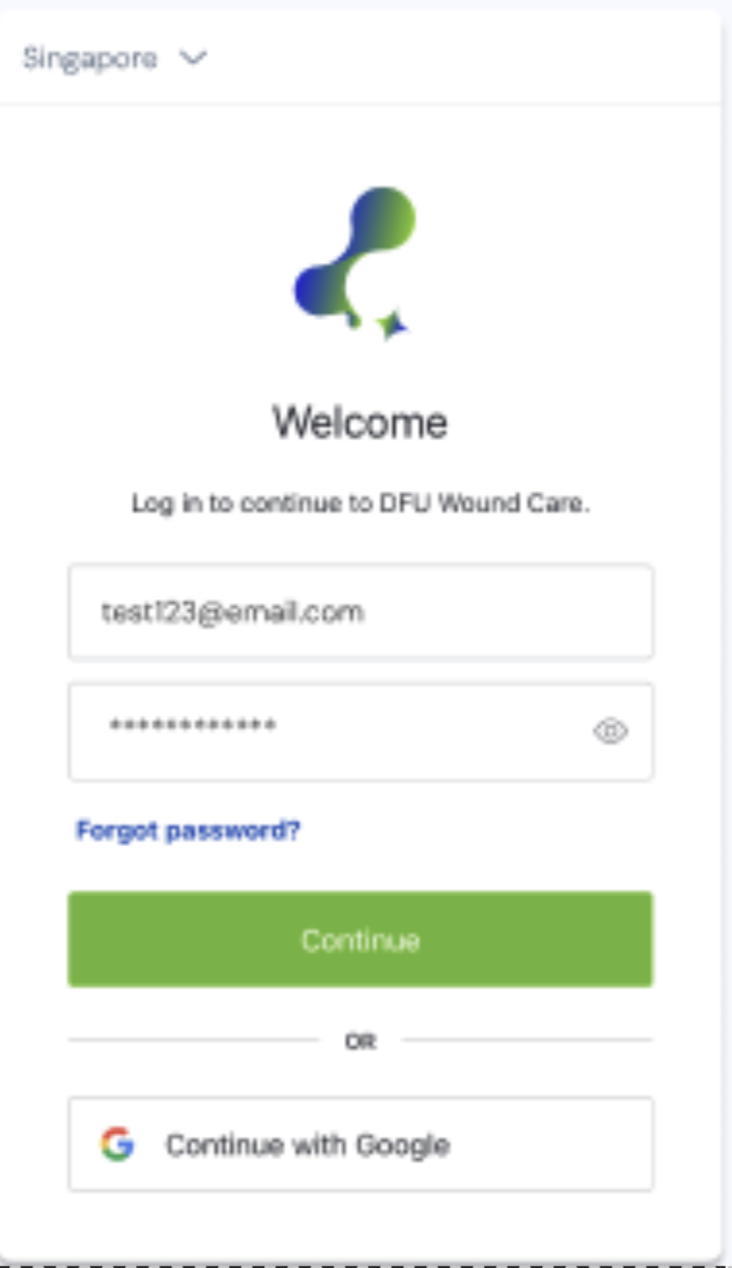
Login
- Before login from the URL, the email address assigned to the account must be verified and password changed via the link from email.
- Once the email address has been verified. Go to URL provided.
- Select the assigned region from the top left corner of the login page.
Patient Dashboard
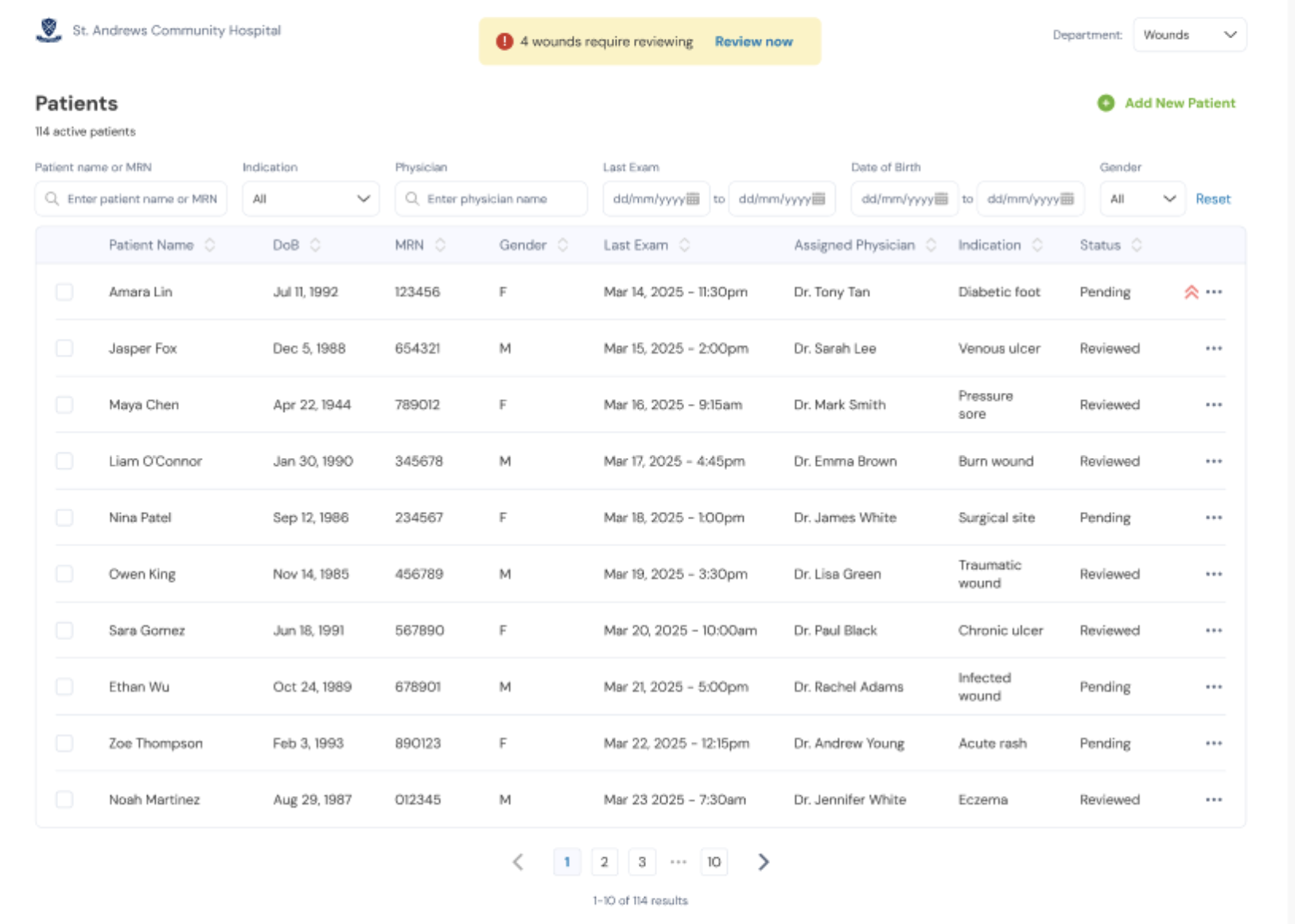
- The Dashboard consists of the following features:
- List of patients and patient details under the facility of in charged
- Review wound notification
- Add new patient form
- Number of active patients under the facility
- Search and filter functions
- Under the ellipse menu
- View audit log
- Assign Physician
- Assign Nurse
- Edit patient details
- Export patient data
- Delete patient
- Stat patient(s) (prioritize for urgent review)
Patient Overview
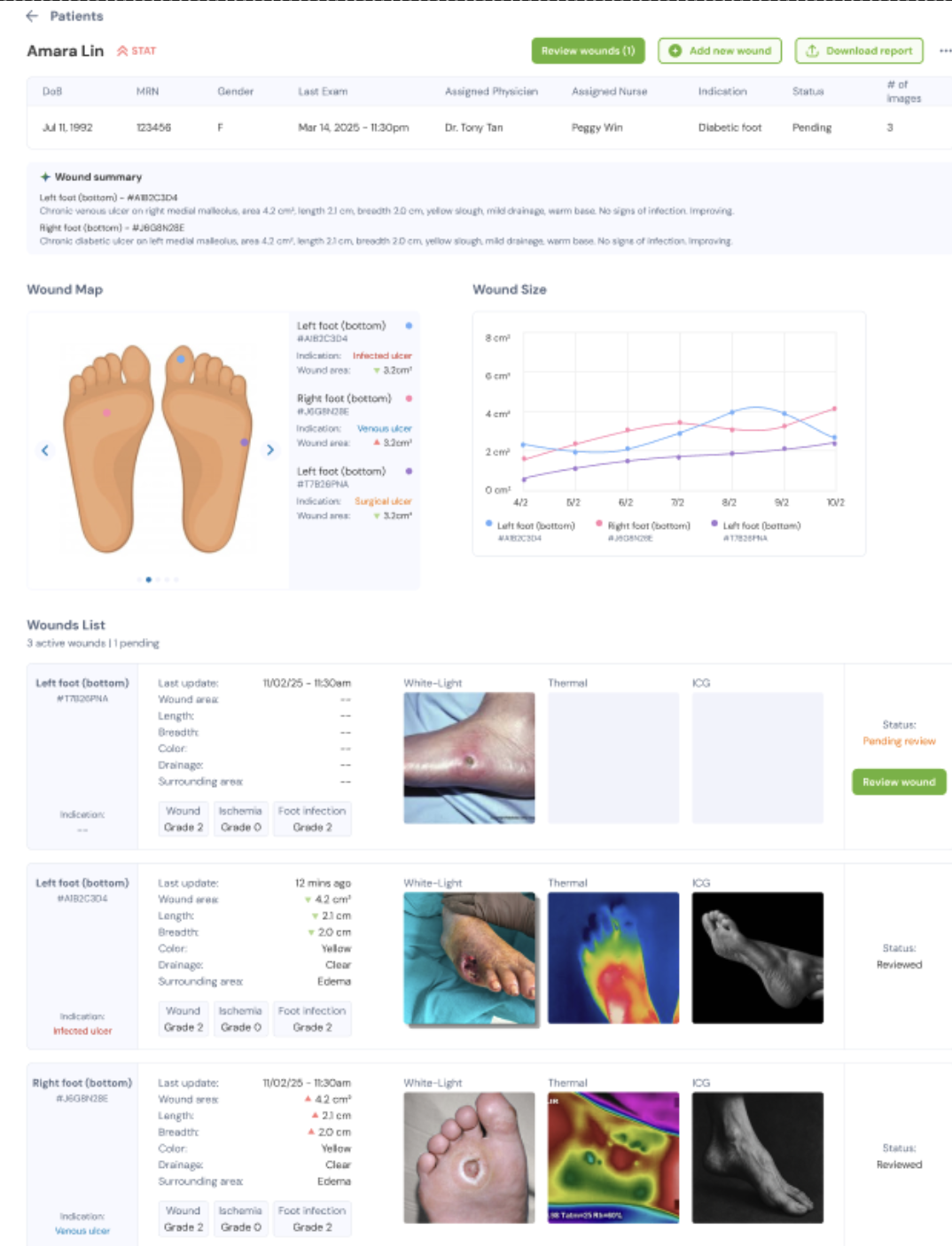
- Click on a patient to see the wound details of the patient from the Dashboard.
- The Patient view consists of the following features:
- Review wounds notification and shortcut
- Add new wound
- Download report
- Patient details
- wound summary
- wound map
- wound size chart
- list of wound records with images thumbnail, status of wound and review wound shortcut
Wound Overview
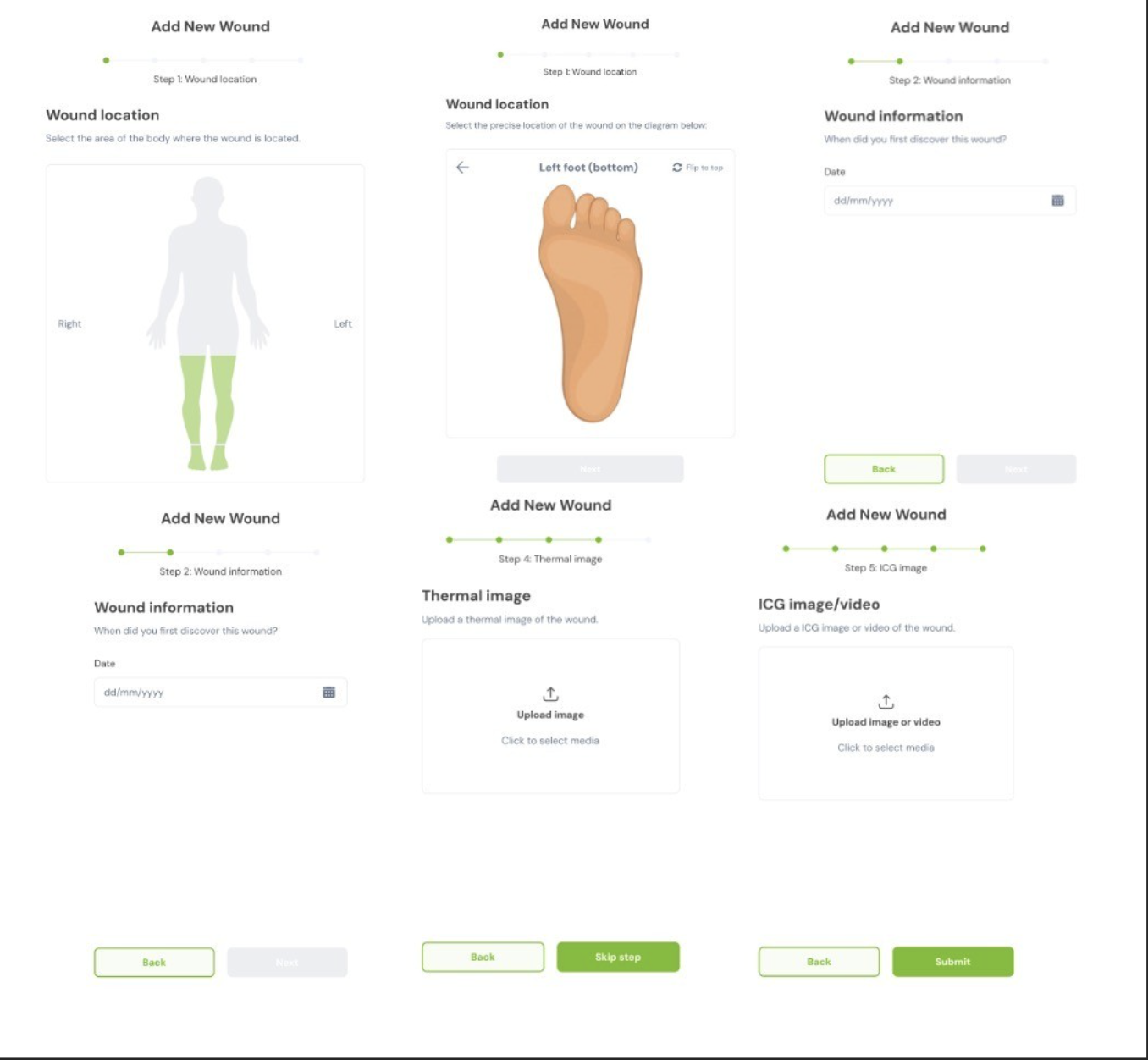
Add new wound
- Select “Add new wound” on top right corner
- User will be guided through the following steps
- Wound location
- Wound Information – first discovered date of reported wound
- White Light Image
- Thermal Image
- ICG video
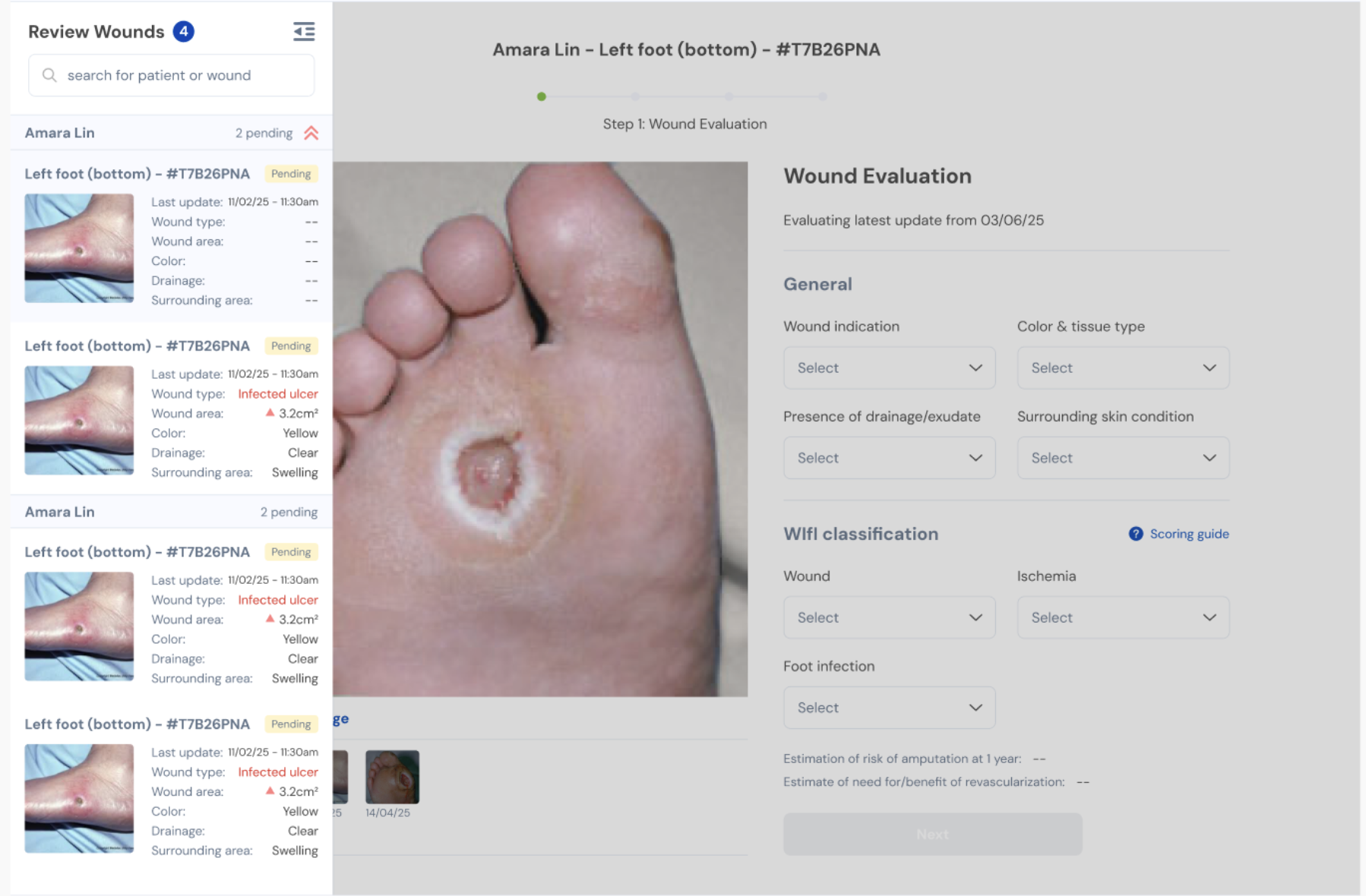
Review Wound
- Select review wound button from top right header bar of Dashboard or from wound list
- User will be guided to do the review of wound via the following steps
- Wound evaluation with general wound input and WIFI classification
- Wound size input
- Annotation
- Comments
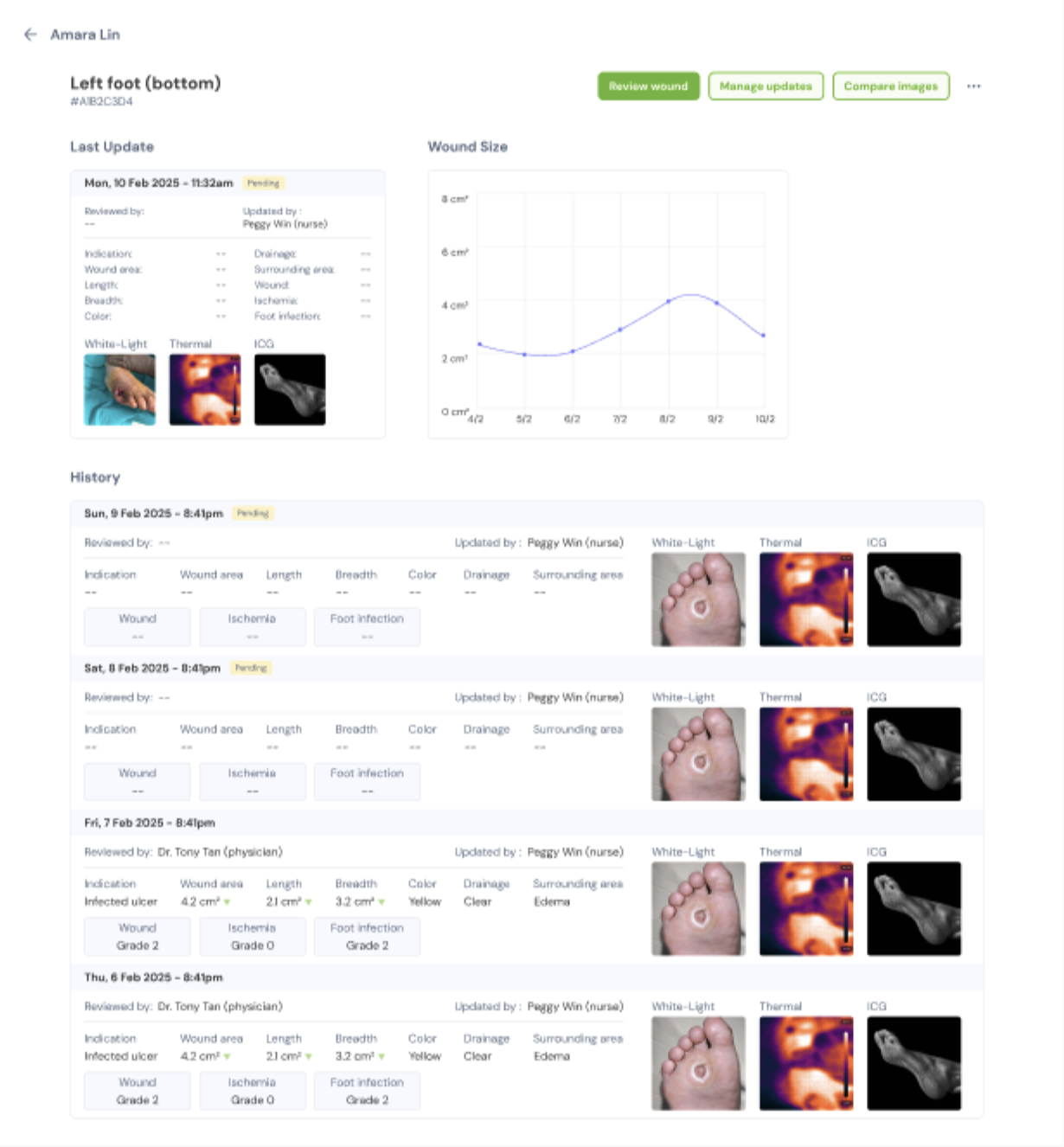
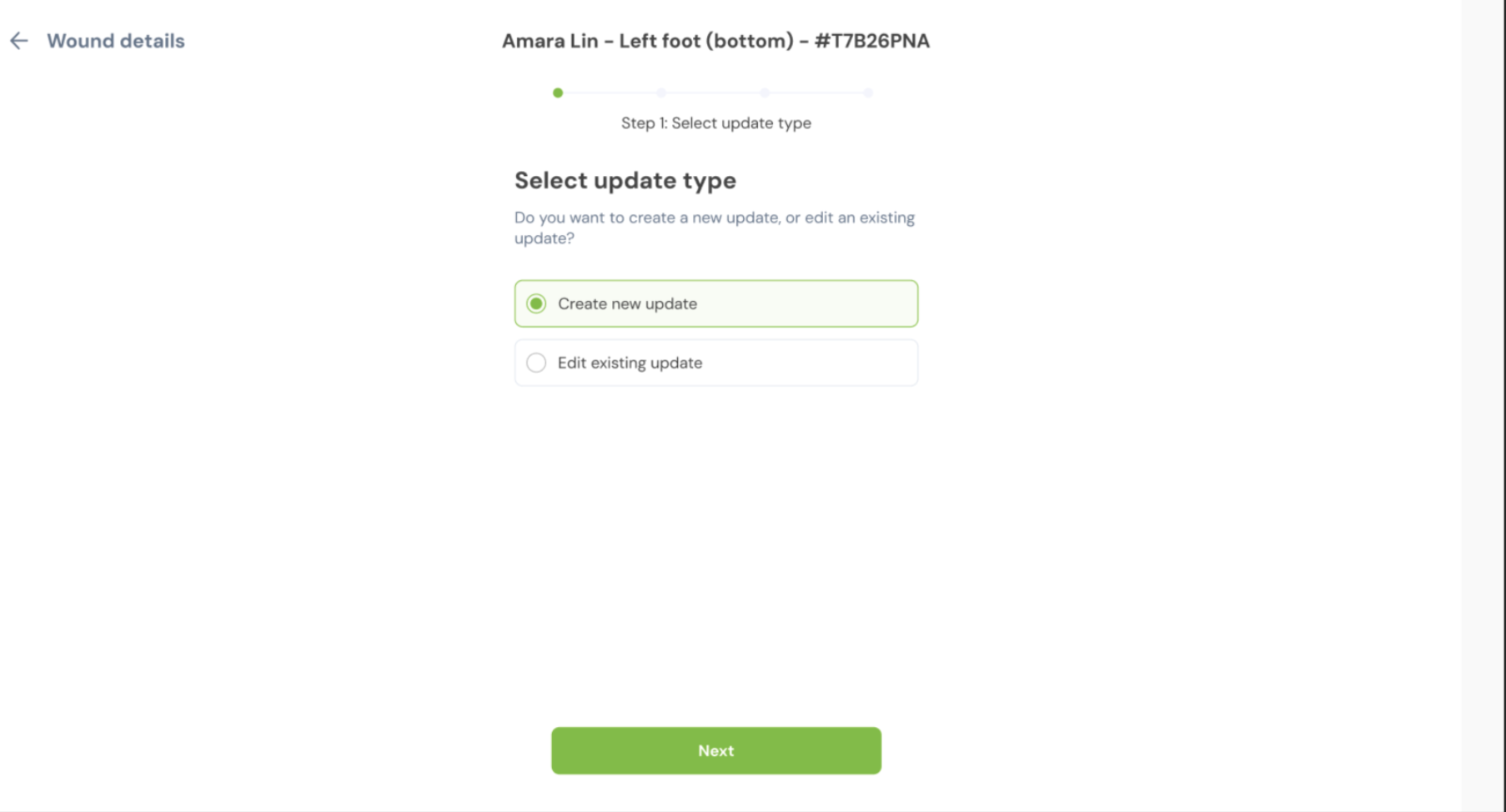
Wound Updates
- Select the wound that requires update
- Select Manage updates from wound overview page
- Select Create new update or Edit existing update from the wound update page
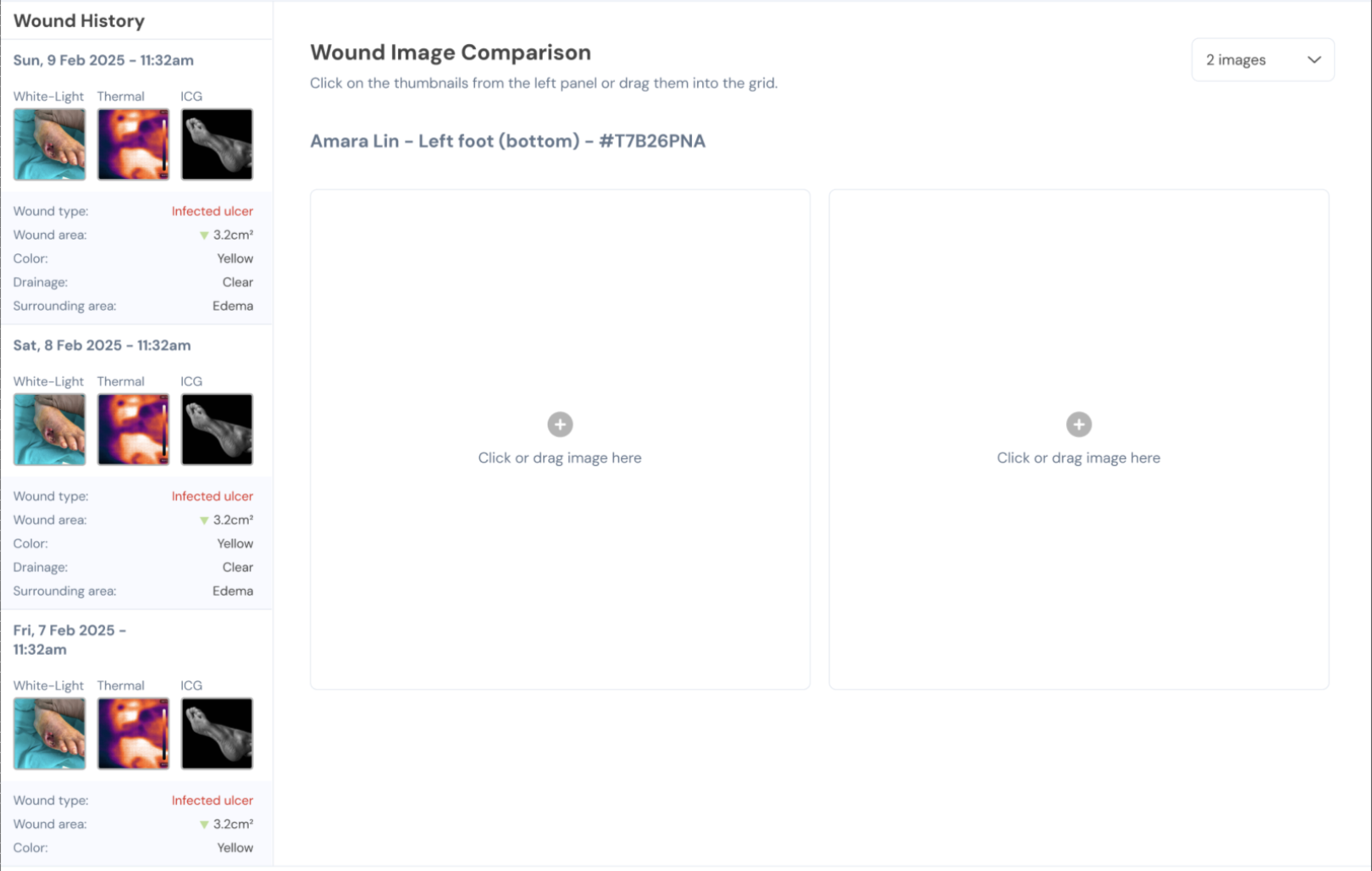
Compare Images
- User can do images comparison by selecting Compare Images from wound overview page
- User can select to compare 2 images to 4 images via the top right corner selection dropdown
- Drag the images from left panel and drop to the right
Settings
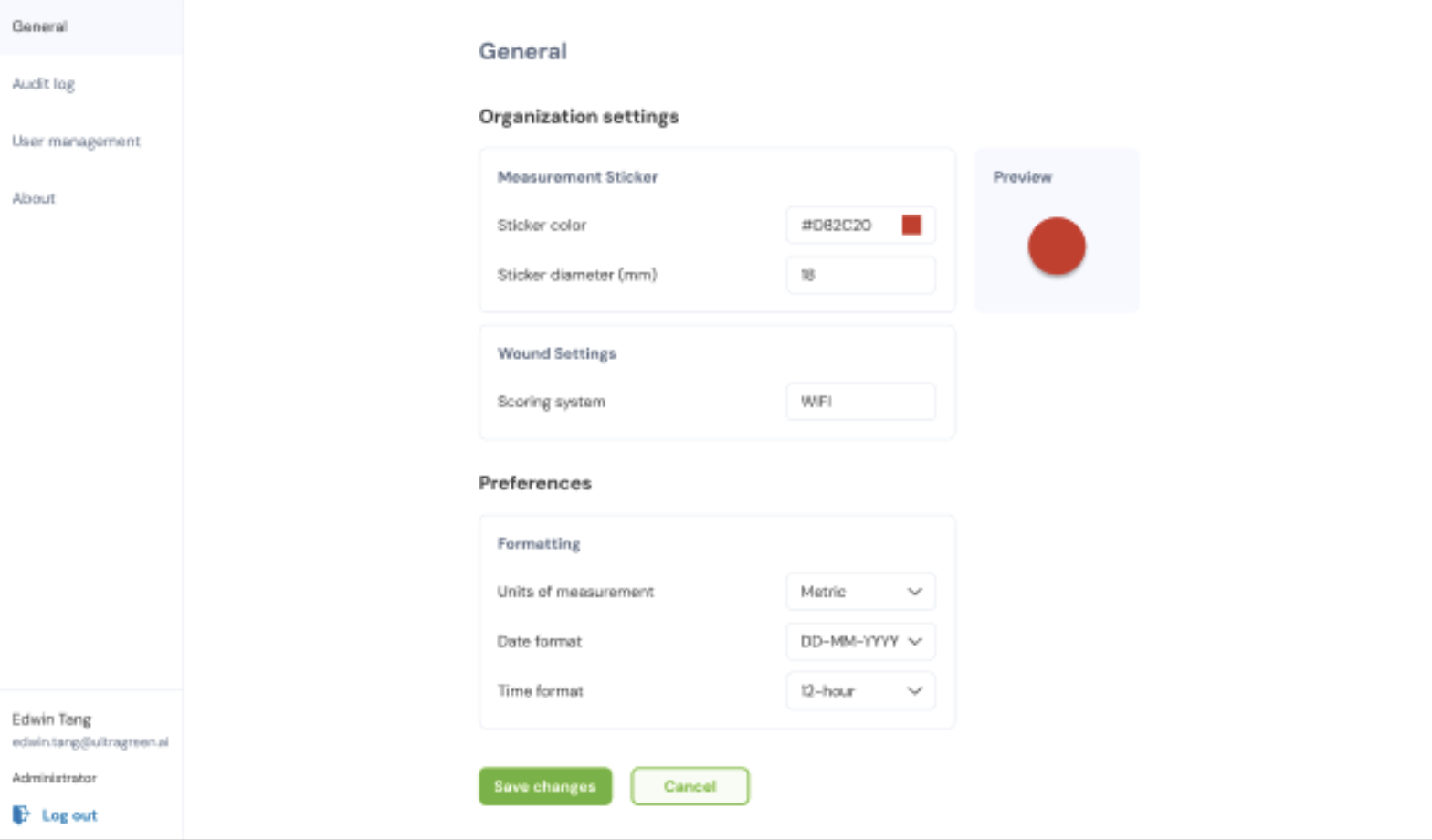
General
- Click on settings from top right corner of dashboard
- At Setting page, the logged in account user name, email and role are shown at the bottom left corner of page
- The Setting Page consists of the following settings
- the measurement sticker colour and diameter
- scoring system (default for now is WIFI)
- the units of measurement
- Date and Time format
Audit Log
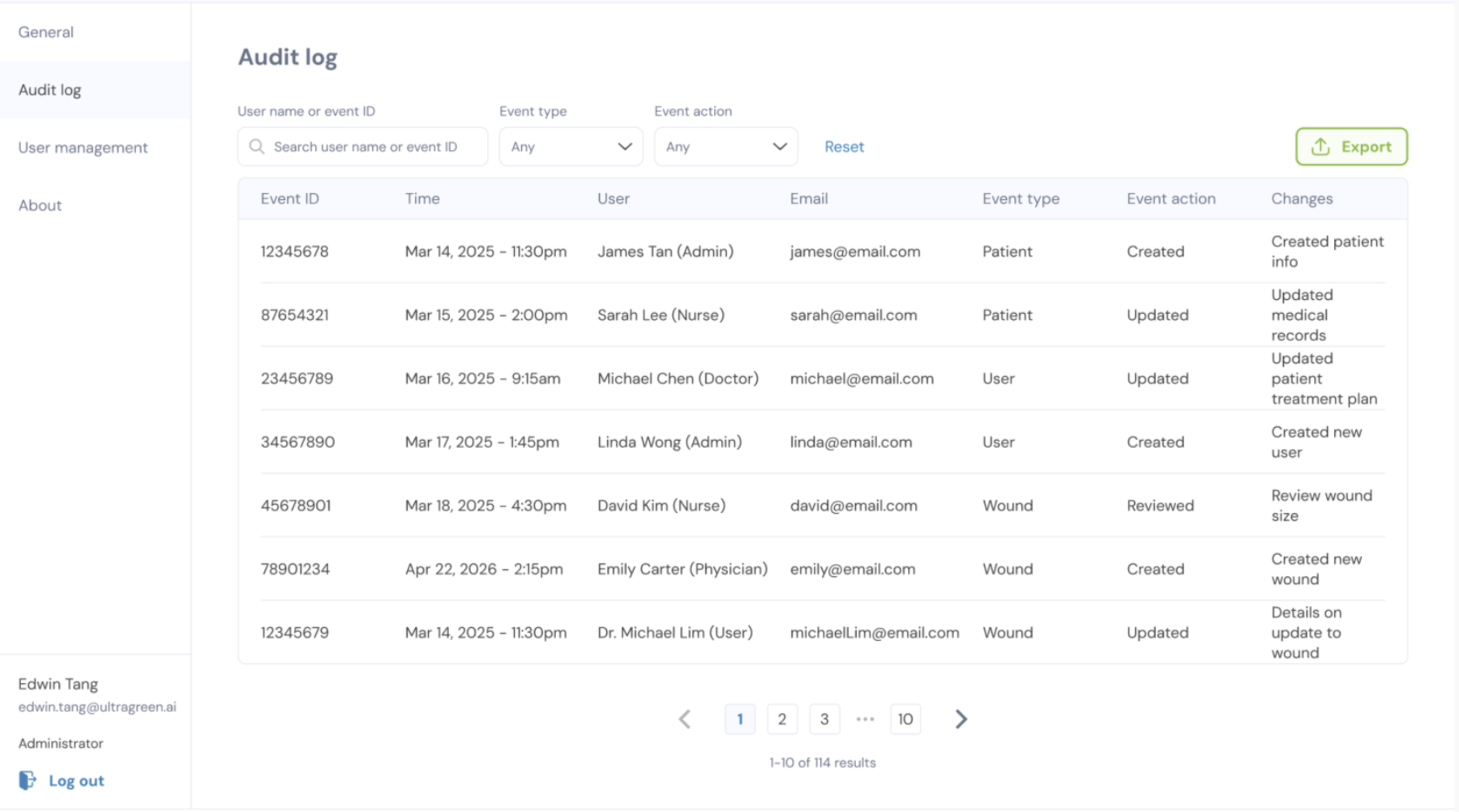
- On Audit log page,User will be able to:
- filter logs by user name , event type, event action
- export the search result to CSV format
User Management
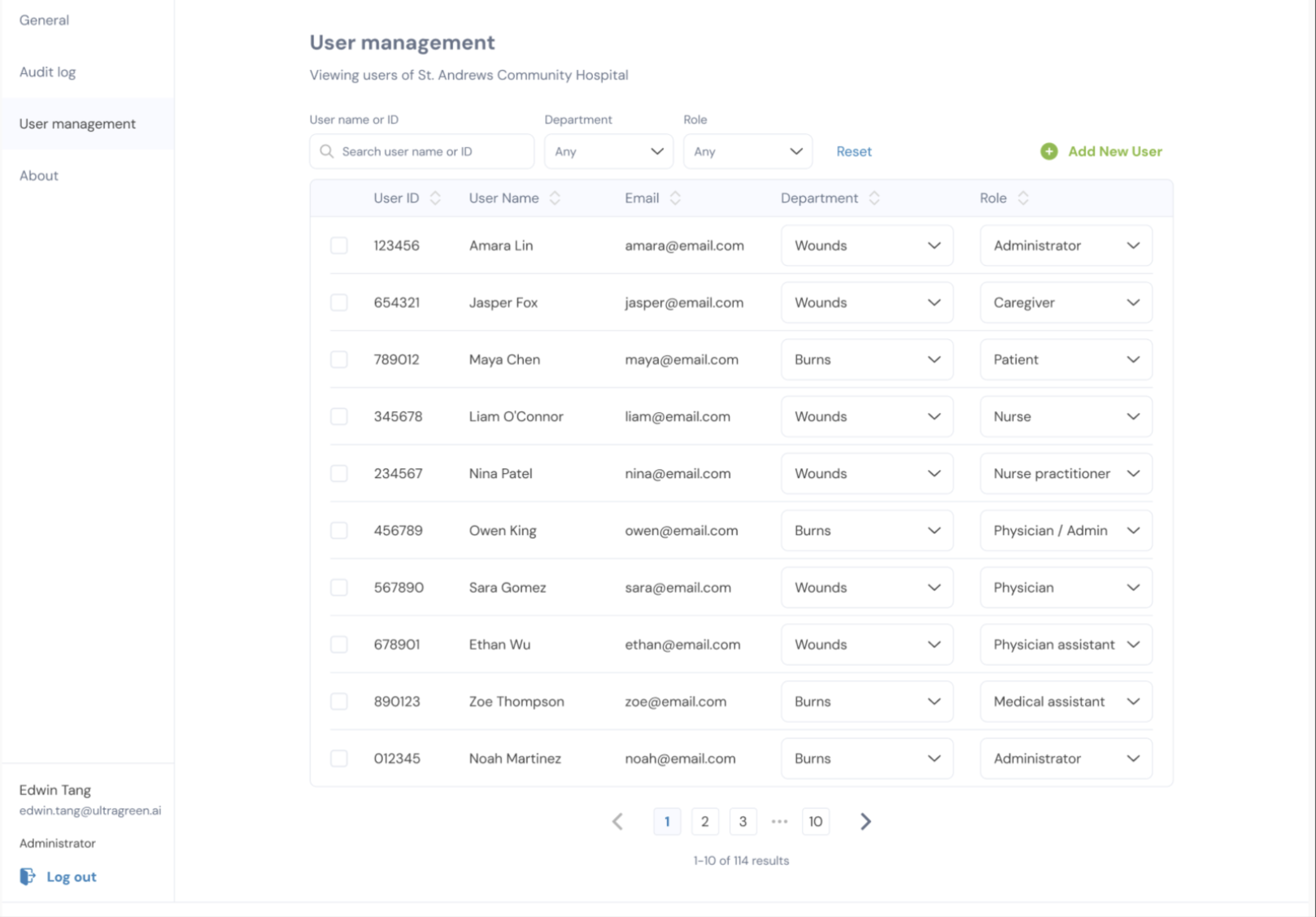
- Under user management, administrator of organisation will be able to create / delete user account(s)
Logout
- User will be able to log out of the Enterprise App from the bottom left side of the settings page
Mobile Application for patient or caregiver
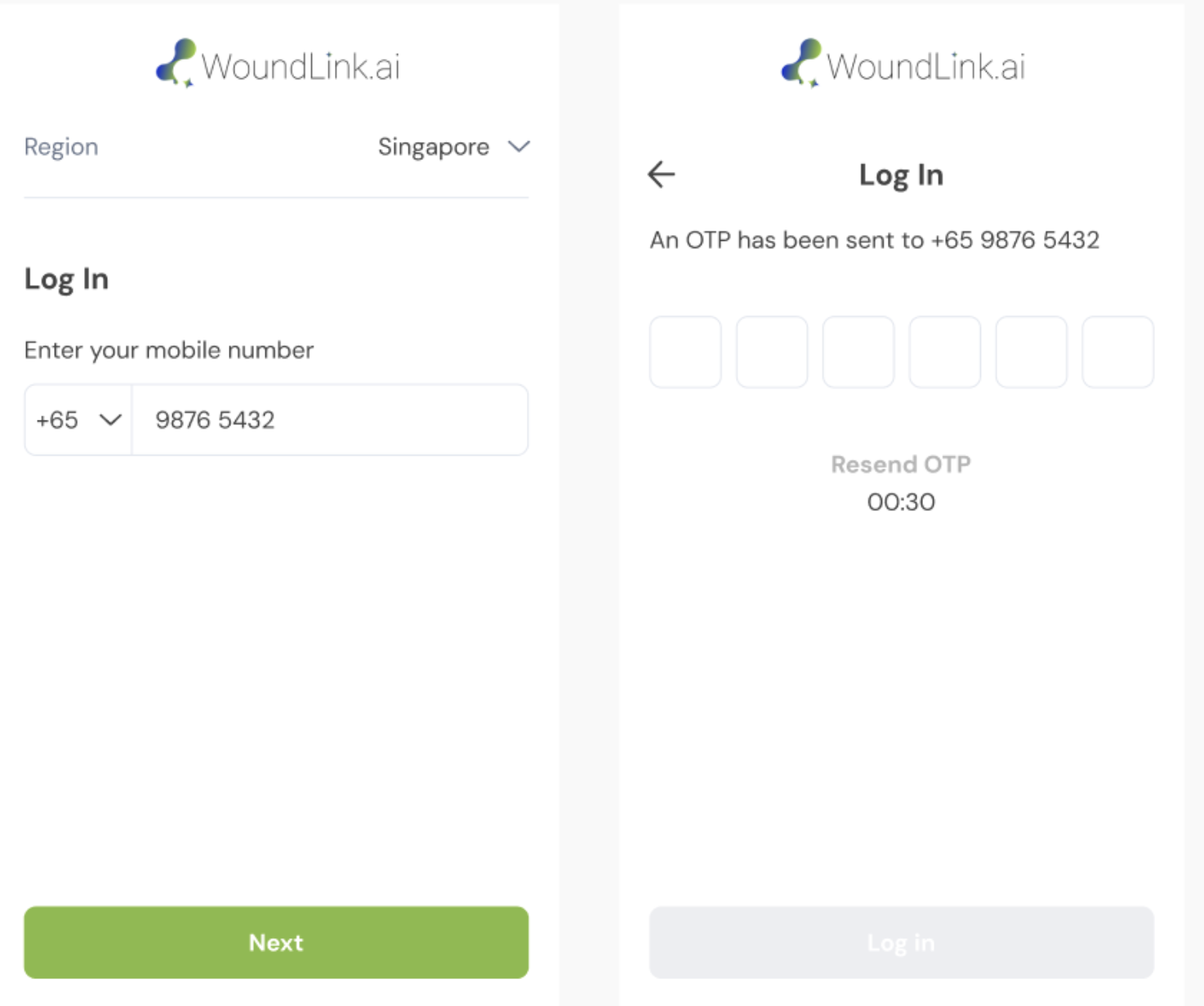
Login
- Download the Mobile Application from the App Store or Google Play.
- Login with the mobile number that the facility nurse registered in Enterprise Application
- Select the region via the top right corner
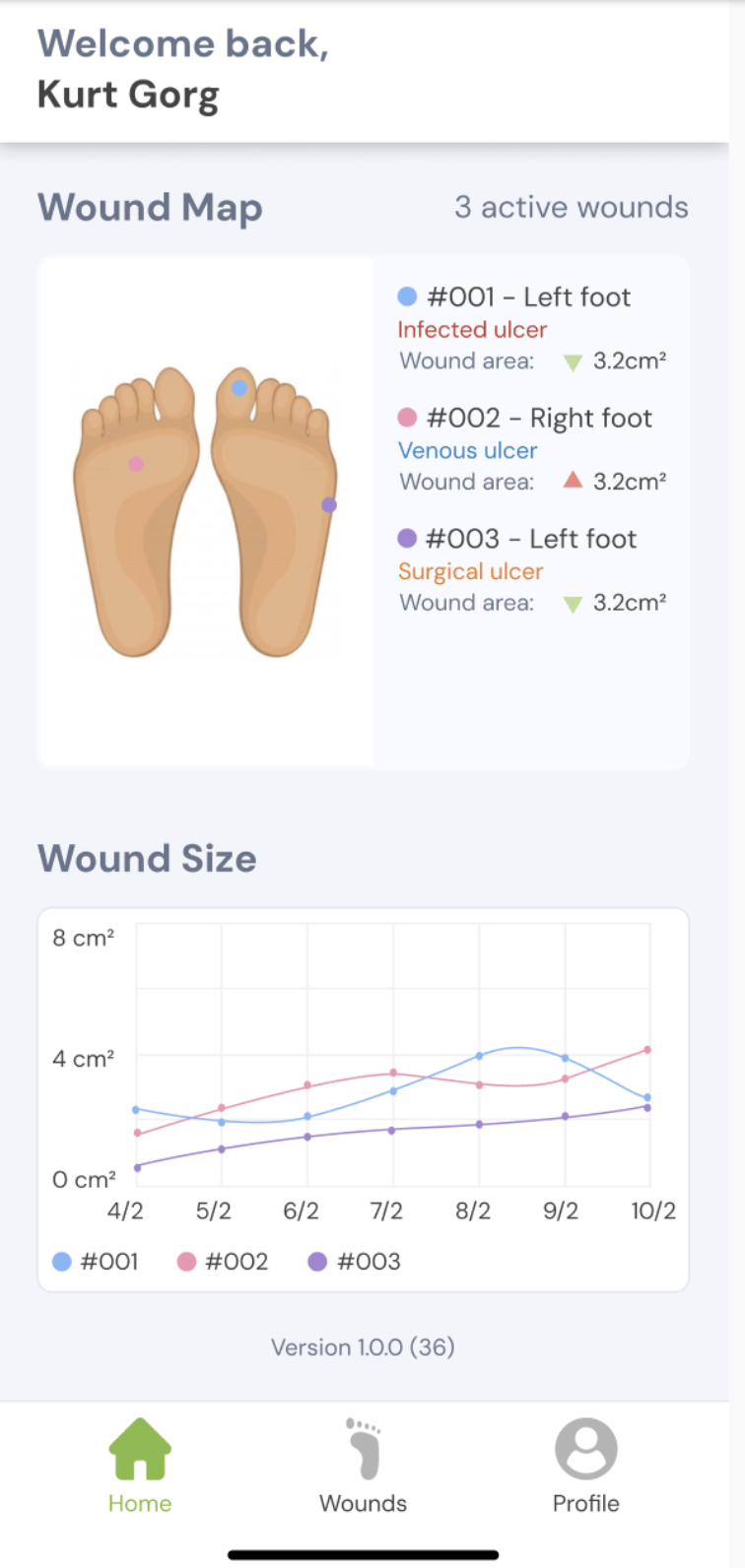
Homepage
- User will arrive to this homepage after successful login via mobile
- The Homepage consists of
- the wound map
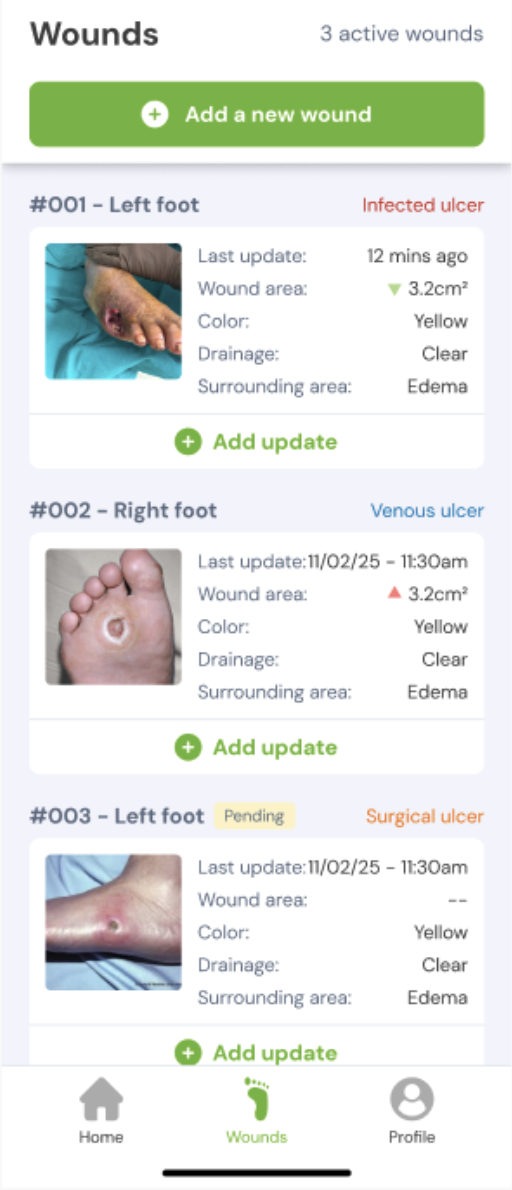
- a summary list of wounds with its location
- the wound size chart
- 3 toggles to manoeuvre across pages
Add new wound
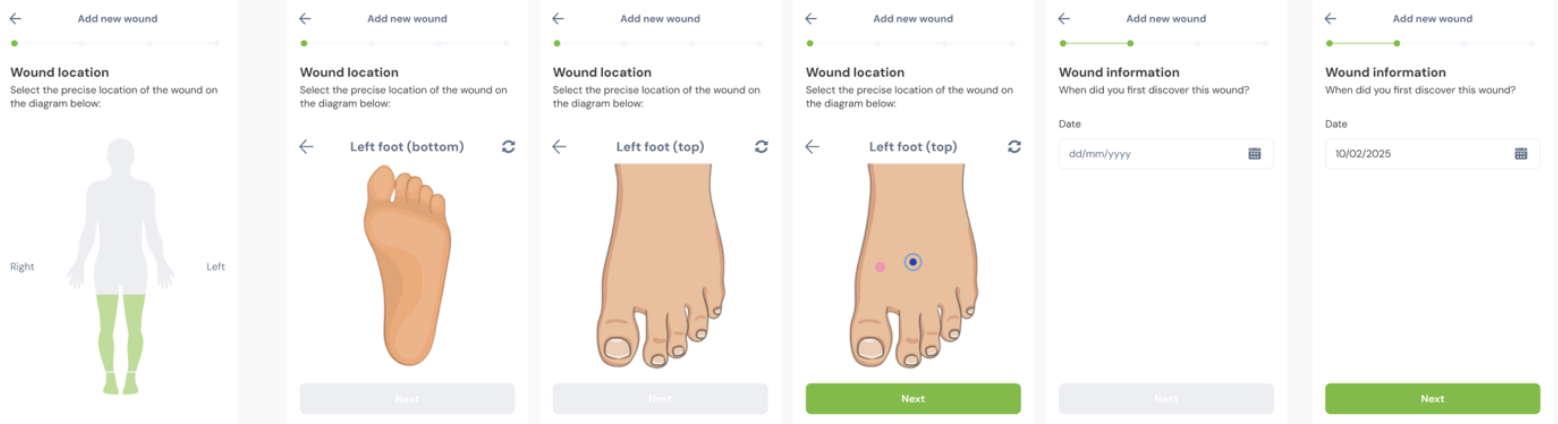
- Select add wound on the Homepage to add a new wound record.
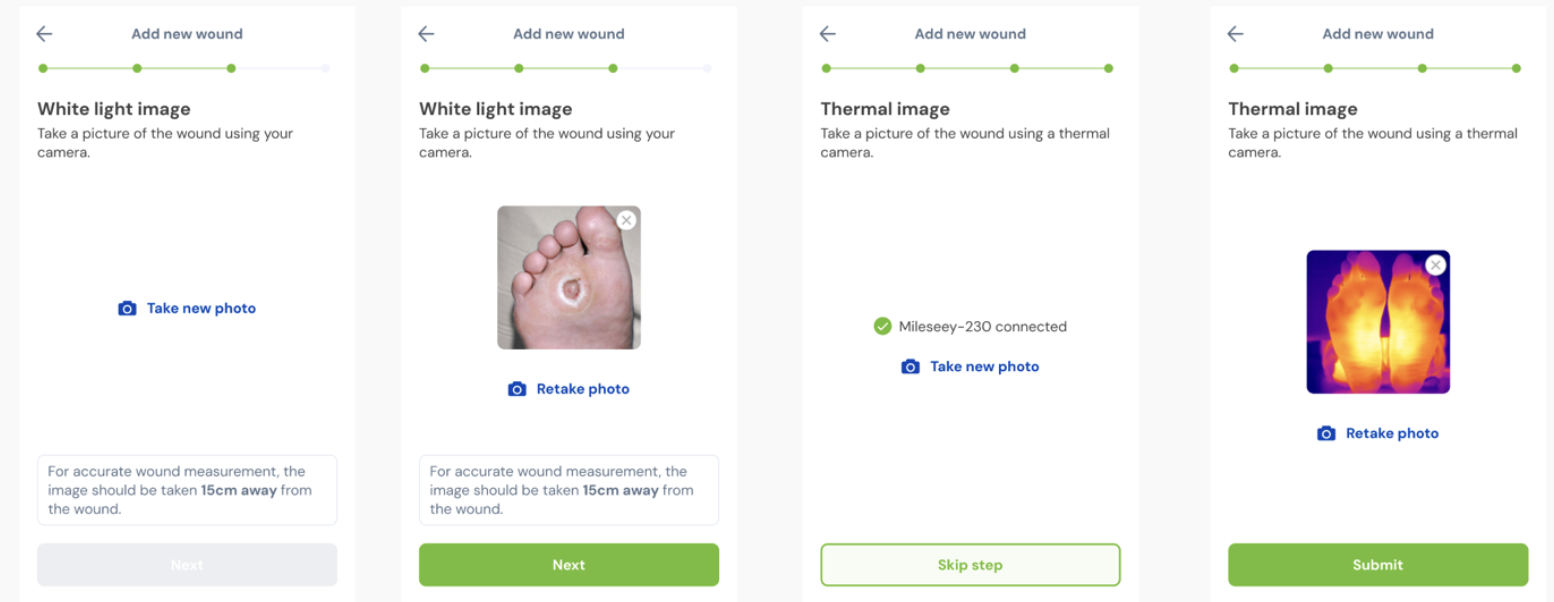
- Complete the wound record by
- selecting the location of wound and indicate the exact position on the foot or leg map
- indicating the date of the wound discovered
- taking white light image from his mobile camera
- (optional) taking thermal image from a third party thermal camera
- Record of wound will be saved in cloud and viewed by the attending physician via Enterprise App
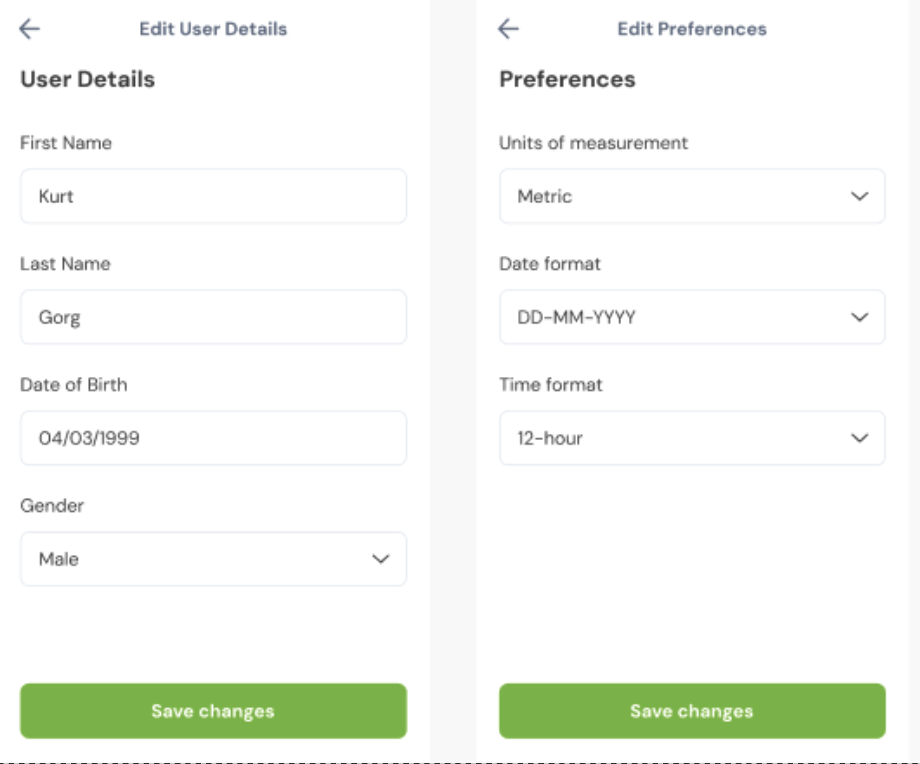
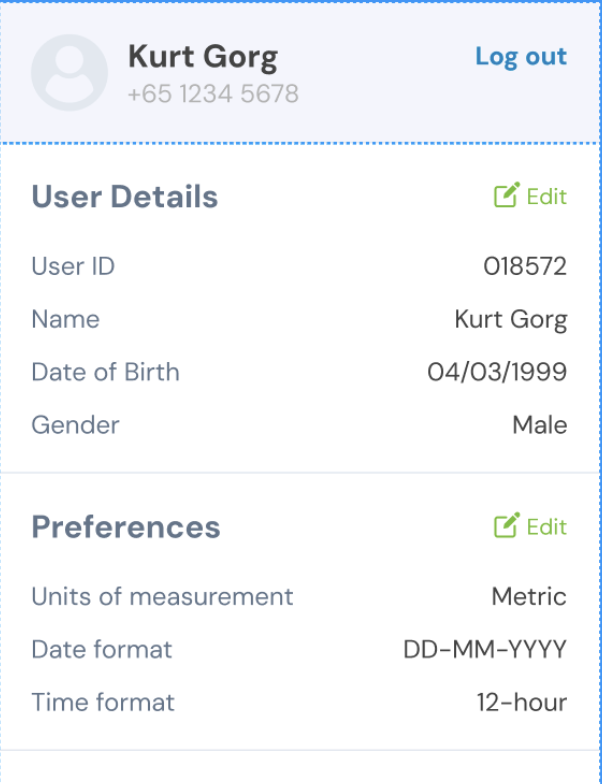
Profile
- User profile as well as preferences can be edited by selecting the third toggle from bottom of Mobile App
Logout
- Log out by selecting the top right corner of the profile page
Troubleshooting
Frequently Asked Questions
Mobile Application
- I cannot login using my mobile number, why?
- Your healthcare facility needs to create a user account for you before you are able to login to the mobile app.
- Where can I download the mobile app?
- If you are using iPhone, download the mobile app from Apple AppStore.
- If you are using an Android phone, go to Google Play.
- Where can I find the button to upload new wound?
- The ‘Add new wound’ button can be found under the second toggle of the app.
- How fast can my wound be viewed by my physician?
- Once your wound record is successfully submitted, your physician will be able to view from Enterprise App.
- Where can I see my wound review from my physician?
- All updates are reflected in the homepage i.e. the first toggle of the mobile app.
Enterprise Application
- Where can I find the login of Enterprise Application?
- Go to the URL that your administrator provided, you will be see a login page and you select your region to begin.
- How do I know my user account and password?
- The administrator of your facility will create a user account for you using your email address. Once a user account has been created, an email will be triggered. Open the email to do the verification followed by a change of password.
- Why am I not able to see any patients in the dashboard?
- You may not be able to see any patient listing because you may not have the access level. Check with your administrator.
- How can I create a mobile app account for my patients?
- At the dashboard, click on “add new patient”, fill up all the required fields and mobile number of patient to create an account for your patients. Inform your patient after the account being created.
- Where to find the STAT action to prioritise patient?
- STAT action is found at the ellipse menu (3 dots) ,end of each patient list. Simply click once to place patient in STAT, one more click is to undo action.
- How do I find out which user account I login to?
- The user credential is reflected at bottom left corner of Settings page.
Manufacturer
Ultragreen.ai Limited
463 MacPherson Road
Singapore 368181
Authorised Representative
Renew Pharmaceuticals Limited.
IDA Business & Technology Park, Garrycastle Dublin Rd,
Athlone, Co Westmeath, Ireland
Part Number
IFU REF 1003-FG-UM-0003
SpectraLinQ Mobile : 1001-FG-SW-R01(00)
SpectraLinQ Enterprise: 1002-FG-SW-R01(05)